|
How to Zip Files |
2 VERSIONS
Directions were written years ago, but the concept should help you. Write us if you still have a problem.
(Note: Both instructions were written for 2k. 2k1 Players will have to add their files to the zip separately since your PIN file is in your PLAYER directory, your REC file is in your RECORDED PLAYERS directory and the VER file is in the main Links2k1 directory.
Version 1 is brought to you in text format by Lgnir!! THANKS
Version 2 is a combo of text and pics so you get an idea of what you SHOULD be seeing IF you are doing it properly using this version. Be patient and allow plenty of time for this page to load since it is filled with screenshots to help you along!!
No one is saying one version is easier than the other. Try them both and see which one is easier for you!
VERSION ONE:
Hey there fellow
ConnLinksters!
Are you having troubles understanding how to ZIP up your files to send them in? Well, don't feel stupid about it, I (and everyone else at one time) was in the same boat that you are! Here's my Christmas present to you, a step by step instruction on how to do it!
First of all, I'm assuming you have WINZIP installed on your computer. I know Hammer posted where to get it a while back, but it can be found most anywhere on the net...like I said, I'm assuming you already have it installed.
Now, my version of WinZip is 6.2 I know there is probably a newer version out there, but this one has been working fine for me for a while now, so why change? If you have a different version, and these steps do not work, well...Sorry in advance!
OK, enough chit-chat...here we go:
You've finished your round(s), and have saved the recorded game, along with the verified file, and you're ready to send in your stuff! First thing you need to do is open your WINZIP program.
The version I use has two "modes" you can use. Either WINZIP WIZARD or WINZIP CLASSIC. To create an archive, I find it easier to use WINZIP CLASSIC, as I have yet to figure out how to do it in the "wizard" mode yet. (I'll have to read the docs
someday..LOL)
Once you have selected WINZIP CLASSIC, you should see a bar along the top, with "new", "open", "favorites", etc. Select the "NEW" button, or you can go to the "File" menu and select "new archive".
A "NEW ARCHIVE" window should pop up. At the top is a "CREATE" window. Here, select the directory (folder) you want to create the new archive in. Or, create a new folder to do it in. The choice is yours! (you can even create it right to your desktop)For simplicity (if you are following along at home), let's choose the DESKTOP, as it is VERY easy to find the file there! :-)
Now you need to give this new archive a name. Move your cursor to the "FILE NAME" window, and click you you get the flashing cursor there. Enter in any name you want
(but first 2 characters MUST be your ConnLINKS Player ID
number and it must contain the event number) (but I wouldn't use more than 8 characters) and DO NOT add ".ZIP" at the end, the program will do this for you. Since we're just messing around, let's call this archive
"07rd1" (without the quotation marks") For the ACTUAL rounds, you'll
have to use the ID and ROUND; such as 01suemiRD3 or 02hammerRD3. (just examples)
Below the "FILE NAME" window is a "SHOW TYPES" window. Ensure "ALL FILES (*.*)" is selected. Now just select "OK".
If done correctly, the "ADD" menu should pop up. Now you have to add what files you want to the archive you've just created.
In the top "ADD" window, find your LINKSLS directory. If you did a default install of LS2k for example, you would first double click on the "PROGRAM FILES" folder, then double click on the "MICROSOFT GAMES" folder, and
finally, double click on the "LINKS LS 2000" folder. (this is the folder where your
.VER, .REC, and .PIN files are stored)
OK, now to find the files you need. As an example, when I played my first qualifying round I named my verification and recorded files
"07RD1". (I believe Hammer said not to use more than 8 characters there as well.) So, I now need to find my
"07RD1.REC" and "07RD1.VER" files. (of course, yours will be named differently, DUH!)
Using the slide bar at the bottom of that window, find your first file you want to add, and double click on it. The "WINZIP CLASSIC" menu should pop up, and you should see the file you selected added to your archive. (It should be in the window under "NAME", "DATE", "TIME", "SIZE", etc, etc...
Now click the "ADD" button, and you will be sent back to the "ADD" menu. Use the slide bar to find the next file you want to add to your archive. (for each round you should be sending in your
.REC, .VER, and .PIN
files, AND remember, you can find your PIN file by looking for a pin file whose
name begins with the letters "clt".)
Once you have all the files selected and they are listed in the WINZIP CLASSIC menu, go up to "FILE" and select "CLOSE ARCHIVE" You will notice that all the files you had in there disappeared...don't freak out, they are in the archive you created in whatever directory you selected. (or on the desktop, if you are playing along at home)
At this time you can close WINZIP. Now let's go check and make sure everything worked right. Go to whatever directory you saved your archive to. (Or the desktop, if your playing the home version of the game)
You should see your 07RD1.ZIP file there. (if it's on the desktop, it will just say
"07RD1") Double click on it. If your WINZIP program comes up in the WINZIP WIZARD mode, select WINZIP CLASSIC, and you will be able to see what files are contained in the archive, without unzipping it.
If you are satisified that all your files you selected are contained within your archive, just close the WINZIP program and you are ready to send the archive in to
ConnLinks!
Go to the REPORT page and follow the directions. Once the files have been received, (I would wait until after the
event is over and a winner has been declared) you can delete the .ZIP file you created.
I hope this helps those that are unfamiliar with using WINZIP to create an archive. I'm no expert by any means, so if this screws you up, or you end up making an archive of your entire hard drive and sending it to Hammer, I'm claiming no liability right now! LMAO
VERSION TWO:
This version also assumes you have WINZIP loaded properly! LOL
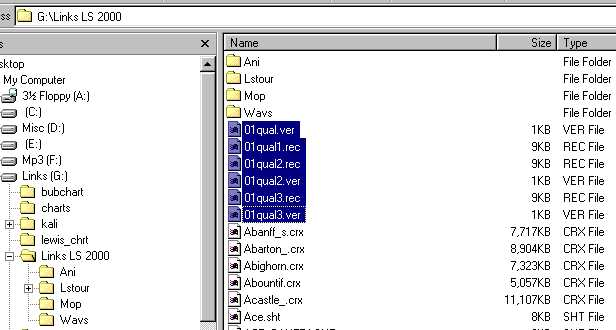
Ok, you've played your games and remembered what you named your files. Go to your LINKS directory using your explorer. Holding down the CONTROL key, LEFT CLICK on the first file you want to place inside the ZIP file you are about to create. KEEPING THE CONTROL KEY HELD DOWN, LEFT CLICK on the next file or files you want to include in the Zip file. They do NOT need to be all in a row in order to LEFT CLICK on them. Just HOLD THE CONTROL KEY DOWN and LEFT CLICK on any files you want to place inside the zip. (In the case shown below, I have highlighted all my REC and VER rounds and have highlighted my PIN file, but you can't see that one since it was off the screen when I took the screenshot.) It will look like this:
Then, with your file (or files) highlighted, RIGHT CLICK and you will see ADD TO ZIP as an option, like this:
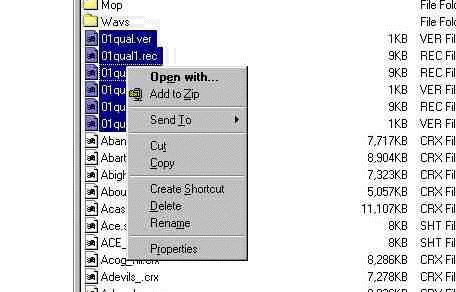
If you are doing a single file, it will have another option on that window. ALWAYS PICK the ADD TO ZIP one that I have pointed to in the pic above. Once you have clicked on ADD TO ZIP, WINZIP will automatically open up and you'll see the following: (Notice that it already highlights your LINKS directory??)
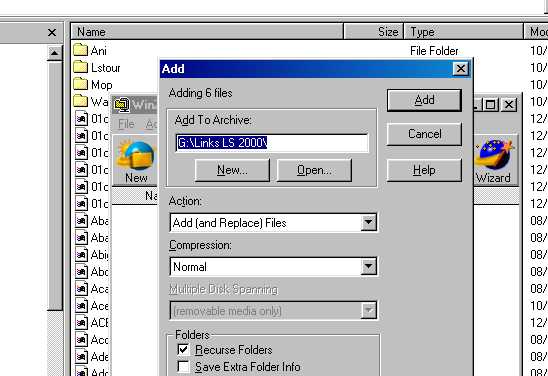
LEFT CLICK at the end of the blue highlighted area and name your ZIP FILE, starting with your I.D. number; i.e. 01RND1 for my round 1. You do NOT have to add the ZIP extension since WINZIP will do that automatically. If all goes well, it SHOULD look like THIS:
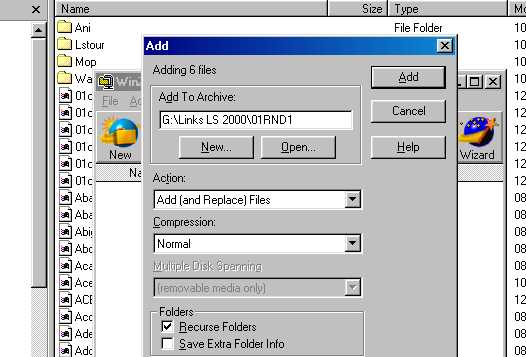
Then click on ADD and WINZIP will add all the highlighted files into a ZIPPED file called 01RND1.ZIP. It should look like THIS:
Ok...now CLOSE your WINZIP window. If all went well, way at the bottom of your list of files you should see the ZIP file that you JUST CREATED!!! It should look like this:
Now that it's allllllllllllllllllllllllll zipped up nice, you can click on the REPORT SCORES link at the ConnLINKS site and follow the directions.
If you have any more questions on zipping files or attaching them to emails, just ASK. We're here to help!!!!!
CLICK BACK TO RETURN TO MAIN REFERENCE PAGE!